Order Relay guide
Order Relay posts your BigCommerce orders to Discord channels, as they come in.
Installing and first setup
- Install Order Relay from the BigCommerce App Marketplace, and approve the permissions it asks for. It reads your orders and your store's details, and registers a webhook so BigCommerce tells it about new orders. It never changes your orders or products.
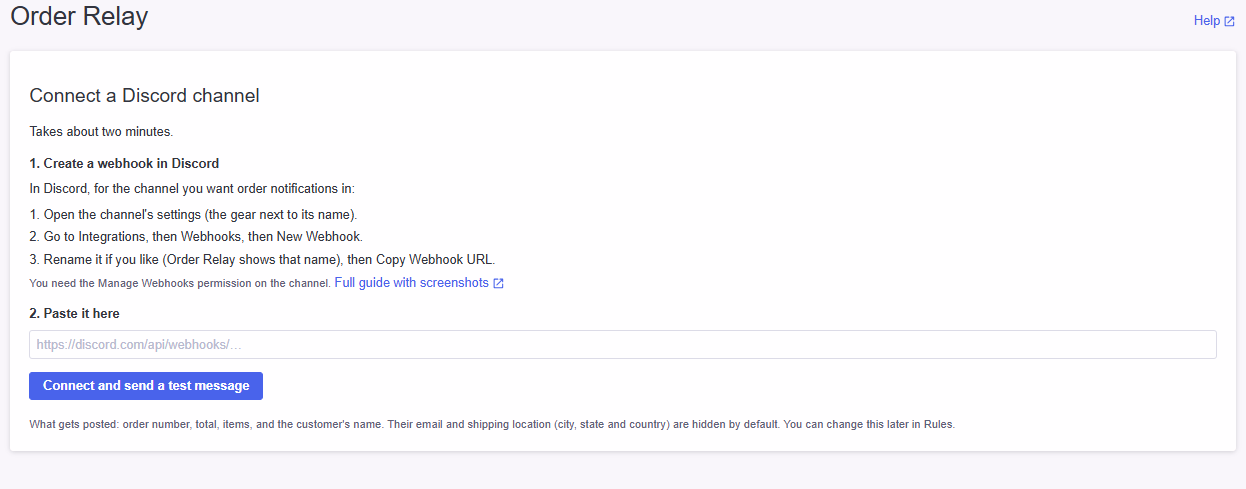
- Order Relay opens on one step: paste a Discord webhook URL and press Connect and send a test message.
- A test message appears in your Discord channel, marked TEST so nobody mistakes it for a real order.
Then Order Relay tells you where things stand:
- You're live
- Discord received the test, and BigCommerce is connected. Your next order will be posted.
- Almost there
- Discord works, but the connection to BigCommerce isn't finished yet. Order Relay keeps retrying on its own for about two hours; you don't need to do anything. If it doesn't connect, see the connection to BigCommerce.
You'll find Order Relay afterwards under Apps in your BigCommerce control panel.
Getting a Discord webhook URL
A webhook URL lets Order Relay post into one Discord channel. You need the Manage Webhooks permission on that channel; if you don't see the options below, ask a server admin.
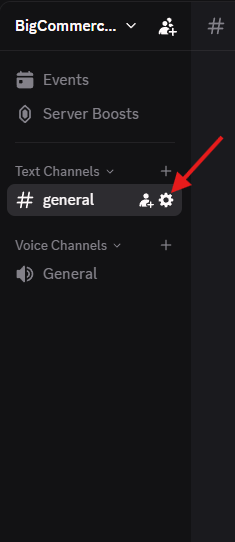
1. Open the channel's settings
In Discord, hover over the channel you want order notifications in and click the gear icon (Edit Channel).
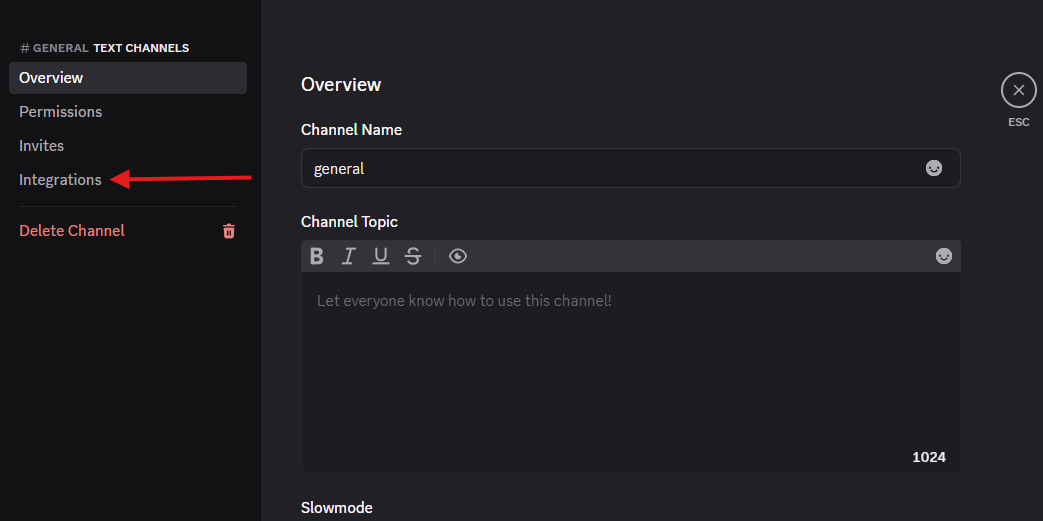
2. Go to Integrations, then Webhooks
Choose Integrations, then Webhooks (or Create Webhook if the channel has none yet).
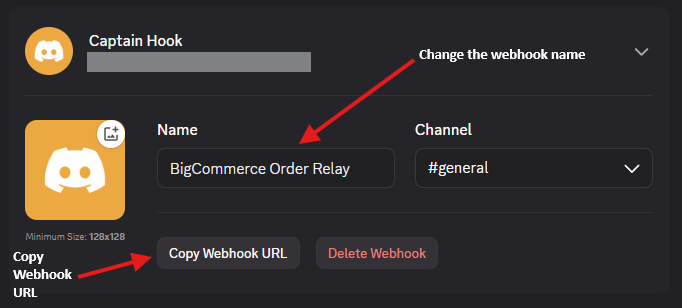
3. Create the webhook and copy its URL
Click New Webhook. Discord gives it a random name; renaming it (to "Order Relay", say) is worth it, because Order Relay shows that name. Then click Copy Webhook URL.
4. Paste it into Order Relay
Paste the URL into Order Relay, in the first-time setup or with Add destination, and send a test message.
If Order Relay says the URL isn't right
- It should start with
https://discord.com/api/webhooks/. A link to a message, a channel or an invite won't work. - If the webhook has been deleted in Discord, make a new one and paste its URL.
Treat a webhook URL like a password: anyone who has it can post in that channel. Order Relay keeps it encrypted and never shows it again after you save it, only its last few characters.
Destinations: your channels
Each Discord channel you post to is a destination. You can have several, for example one for sales and one for the warehouse, each with its own rules.
- New destinations start switched off. They switch on by themselves when their first test message gets through, so a channel never goes live without proof it works.
- The switch turns a channel's notifications on and off without losing its settings.
- Send test message posts a sample order, marked TEST, using that channel's rules, through the same path a real order takes. Order Relay shows whether it was delivered, and it appears in the Delivery log as a test. It never counts as an order in Activity.
- If a test isn't confirmed within about 20 seconds, Order Relay's delivery worker may not be running, or the queue may be busy. Real orders would wait too. The result appears in the Delivery log once it goes through.
- Activity shows the latest order posted and the last seven days' sent and failed counts. A quiet week with everything connected says so, rather than looking like a fault.
A badge appears only when something needs you:
- Not set up
- The destination has no webhook URL yet.
- Needs testing
- The URL is new or changed, and no test message has got through since. Send one.
- Failing
- The most recent order to this channel couldn't be posted. The Delivery log says why. The badge clears when the next one gets through.
Rules: when to notify, and what's shown
Each destination has its own rule. Change it from the Rules tab; changes apply from the next order.
When to notify
Notify when an order reaches one or more order statuses, shown with your store's own names. The default is Awaiting Fulfillment, where most new orders land.
Some payment gateways put new orders somewhere else, often Awaiting Shipment. If real orders aren't being posted, open the Delivery log, choose All status changes, and look at which status your orders arrive on. Then add it to the rule.
- Picking two "new order" statuses means an order that passes through both is posted twice.
- Statuses later in an order's life (Shipped, Refunded and so on) can be chosen too. For now they're posted in the same layout as a new order.
- Minimum order total (optional) skips orders below it, including shipping and tax. The Delivery log shows skipped orders and why.
What appears in the notification
Everyone who can see the Discord channel sees what's posted, so choose with them in mind:
- Customer name (on by default)
- Customer email (off by default)
- Shipping city, state and country (off by default). Never the street address.
- Items ordered: product names, quantities and a product image
- Prices and order total. Turning this off hides each item's price too; items show their SKU instead.
Always included: the order number, the payment method, and a link to the order in your control panel. The preview beside the rule shows exactly what the channel will see as you change it.
Delivery log: "did my order post?"
The Delivery log lists each order status change Order Relay received, and what happened in each channel. It shows outcomes, never the notification's content.
- Find an order: search its number to see everything for that order, whatever its age.
- Show: Notifications (orders that matched a rule), Failed, or All status changes.
- Test messages appear as their own rows, marked Test. Untick Show test messages to hide them.
- Channel changes appear as their own rows too, marked Channel change: a channel added, renamed, deleted, switched on or off, or given a new webhook URL, and who did it. The URL itself is never shown or kept. Untick Show channel changes to hide them.
- Sent to channel
- Posted.
- Channel — failed
- Discord refused it, and its reason is shown. Fix the cause (often a deleted webhook: make a new one and update the destination), then press Resend. Resend works on failed deliveries from the last seven days, and fetches the order fresh from BigCommerce.
- Not sent to channel
- The rule matched but excluded the order, such as being under the minimum total, or the channel was switched off before the message went. The reason is shown.
- Not sent — no channel notifies on this status.
- If it should, add the status to a rule.
- Not sent — no channel was switched on.
- Switch a channel on in Destinations.
- Retrying
- Discord didn't take it first time; Order Relay is trying again on its own.
- Couldn't load the order from BigCommerce, so nothing was sent.
- BigCommerce wouldn't return the order after several tries.
If BigCommerce stopped sending orders for a while, the log shows the window and how many orders were placed in it. BigCommerce doesn't re-send those orders.
The connection to BigCommerce
The Connection panel shows two things separately: whether Discord is set up, and whether BigCommerce is sending orders to Order Relay. A test message only proves the first. When the BigCommerce side has a problem, the panel says which, with a Reconnect button:
- BigCommerce paused order notifications to Order Relay
- BigCommerce switches off its connection to an app after deliveries keep failing. Order Relay also checks every hour and reconnects on its own.
- Order notifications aren't connected
- The connection is missing. Right after installing, it may say it's retrying automatically.
- Order notifications are going to the wrong address
- BigCommerce is sending orders somewhere that isn't Order Relay any more.
- Order notifications are being refused
- BigCommerce is sending orders without the key Order Relay checks, so they're turned away.
- New orders aren't arriving from BigCommerce
- The connection looks fine to BigCommerce, but orders placed since then never reached Order Relay. Reconnect replaces the connection.
- Couldn't check the connection with BigCommerce
- Usually temporary. Press Check again.
Orders placed while the connection was down aren't sent later by BigCommerce. The Delivery log shows when it happened and how many orders were affected.
Privacy: what's posted, what's kept
Posted to Discord
Only what each channel's rule allows. Customer email and location are off unless you turn them on, and a street address is never posted.
Kept by Order Relay
- Your store's name and address, and your destinations and rules. Webhook URLs are stored encrypted.
- For each order status change: the order number, the statuses, and what happened in each channel. Not the order's contents: Order Relay fetches those from BigCommerce when it posts.
- If a post fails and is being retried, the order details needed to retry it are kept for up to seven days, then deleted.
When you uninstall
Order Relay stops immediately: every channel is switched off and the connection to BigCommerce is removed. Your settings are kept, so reinstalling picks up where you left off. To have them deleted, contact us.
The full details are in the Privacy Policy, and the Terms of Service cover what Order Relay does and doesn't promise.
Support
Get in touch
We aim to reply within one business day.
When you write, please include your store's domain and, if it's about a specific order, the order number. You can find what happened to any order in the app's Delivery log tab, which often answers the question straight away.
Before you email
Most problems have an answer in the app itself:
| If | Look at |
|---|---|
| An order didn't post | Delivery log — search the order number. It shows whether we received the event and what happened to it. |
| Nothing is posting at all | Destinations — the Connection panel at the top shows whether BigCommerce and Discord are both working, with a Reconnect button if not. |
| Some orders post, others don't | Rules — check which statuses the channel notifies on, and whether there's a minimum order total. |
| You're setting up for the first time | The setup guide |
A note on security
We will never ask you for a Discord webhook URL, your BigCommerce credentials, or any password.
A Discord webhook URL lets anyone holding it post into that channel. If anyone asks you for one, including someone claiming to be us, don't send it.
If you think a webhook URL has been exposed, delete that webhook in Discord and create a new one. The old one stops working immediately, and you can paste the new one into Order Relay.